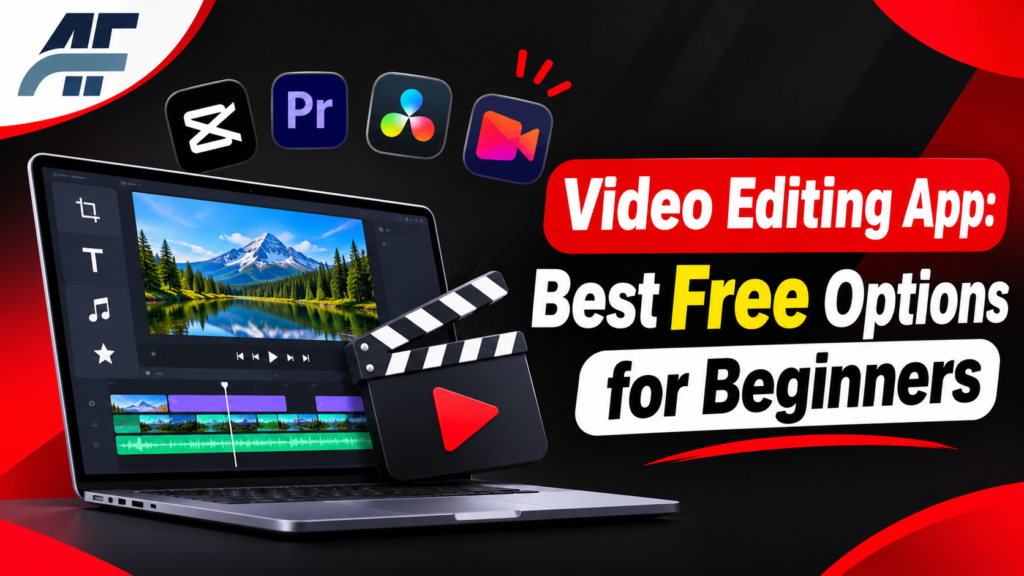
Video Editing App: How to Choose the Right One
A video editing app lets you cut, join, and improve video clips. You can add music, text, and effects. Then you export a finished video to share or save.
This guide is for beginners and casual creators in the US. You will learn what these apps do, which free options are worth using, and how to pick one that fits your device and goals.
Quick Answer: What Is the Best Video Editing App?
There is no single best video editing app for everyone. The best choice depends on your device and your skill level.
- Beginners on a phone: Use a simple mobile app like CapCut, InShot, or iMovie (Apple devices only).
- Windows PC users: Try Clipchamp for easy work or DaVinci Resolve for pro-level tools.
- Anyone who wants no downloads: Use an online editor in your browser.
Always check each app’s current free plan. Features and limits change over time.
What Is a Video Editing App?
A video editing app is software that changes raw video into a finished video. It runs on a phone, a computer, or in a web browser.
Most apps work with a timeline. The timeline is a strip where you place clips in order. You can trim a clip, split it, move it, or layer one clip over another.
Video editing apps can do many jobs:
- Trim and join clips
- Add music and voiceovers
- Add titles, captions, and stickers
- Fix color and lighting
- Add transitions between clips
- Change speed (slow motion or fast motion)
- Export in a size that fits YouTube, Instagram, or TikTok
Who Needs a Video Editing App?
You may need one if you:
- Make videos for social media
- Run a small business and want product or promo videos
- Create school projects
- Record family events
- Start a YouTube channel
- Edit short films
Each group needs different tools. A student making a slideshow needs far less than a filmmaker working on a short film.
Types of Video Editing Apps
There are three main types. Each one has clear strengths.
Mobile Apps
Mobile apps run on iPhone and Android. They are fast and easy to learn. They work well for short videos for social media.
The trade-off is screen size and power. Long or complex projects are harder on a small screen.
Desktop Software
Desktop software runs on Windows or Mac. It gives you more control and handles bigger projects. It usually needs a decent computer.
This is the best choice for long videos, YouTube content, and film work.
Online Video Editors
An online video editor runs in your browser. You do not install anything. You sign in, upload clips, and edit.
These tools are easy to start with. But they often depend on your internet speed. Many also limit exports or add a watermark on the free plan.
Best Free Video Editing Options
Free options are good enough for most people. The list below covers popular choices. Free plans can change, so check each official site before you start.
Best Free Video Making Software for Windows
If you want the best free video making software for Windows, these are strong picks.
DaVinci Resolve
DaVinci Resolve is made by Blackmagic Design. It has a free version with professional tools, including advanced color correction. It takes time to learn and works best on a stronger computer. You can find it at the official DaVinci Resolve page.
Shotcut
Shotcut is free and open source. It works on Windows, Mac, and Linux. It has a simple layout and many features. Learn more at the Shotcut website.
Kdenlive
Kdenlive is also free and open source. It offers multi-track editing and many effects. See the Kdenlive website.
OpenShot
OpenShot is free and open source. It is a gentle start for beginners. Visit the OpenShot website.
Clipchamp
Clipchamp is a Microsoft video editor. It works in your browser and is part of the Windows 11 experience. It is a good pick for quick, clean edits. See the Clipchamp website.
[RELATED POST: https://ahmadflow.com/youtube-shorts-downloader-save-shorts-by-url-free/]
Free Film Editing Software
For longer projects, you need more than a basic app. Free film editing software should handle many clips, audio tracks, and color work.
DaVinci Resolve is the strongest free choice here. Kdenlive and Shotcut are good lighter options. All three can handle multi-track timelines.
Online Video Editor Free Options
An online video editor free of charge is handy when you use a shared or older computer. Clipchamp works in the browser. Canva also has a video editor in its web tool, with both free and paid features.
Many free web editors add limits. These can include a watermark, lower export quality, or a cap on video length. Read the plan details before you spend time on a project.
Video Editing Website Free to Use
When people search for a video editing website free of cost, they usually want quick edits with no install. Browser tools fit this need. Be careful with unknown sites. Use well-known tools, and avoid sites that ask for strange permissions or force you to download extra files.
Free Video Editor Free of Watermarks
Many people want a free video editor free of watermarks. Open source tools like Shotcut, Kdenlive, and OpenShot do not put watermarks on your video. DaVinci Resolve’s free version is also known for not adding one. Mobile apps and online tools vary, so check before you export.
Mobile and Mac Options
- iMovie: Free on iPhone, iPad, and Mac. Easy to learn. See the iMovie page.
- CapCut: Popular for short social videos. It has a free plan and paid features. See the CapCut website. App availability can differ by region and over time, so check your app store.
- InShot: A simple mobile editor. The free version has ads and some limits.
Comparison Table
| App | Best For | Device | Learning Curve |
|---|---|---|---|
| DaVinci Resolve | Film and pro work | Windows, Mac, Linux | Steep |
| Shotcut | General editing | Windows, Mac, Linux | Medium |
| Kdenlive | Multi-track projects | Windows, Mac, Linux | Medium |
| OpenShot | Beginners on a PC | Windows, Mac, Linux | Easy |
| Clipchamp | Quick, simple edits | Browser, Windows | Easy |
| iMovie | Apple users | iPhone, iPad, Mac | Easy |
| CapCut | Short social videos | Phone, desktop | Easy |
| Canva | Simple videos with design | Browser, phone | Easy |
Key Features to Look For
Not every feature matters to everyone. Focus on the ones you will use.
Timeline editing. This is the base of any editor. It lets you place and trim clips with care.
Multiple tracks. You need these if you want to layer video, music, and text.
Audio tools. Look for volume control, noise reduction, and voiceover recording.
Text and captions. Captions help viewers who watch with the sound off. Some apps make captions automatically.
Export options. Check that the app can export in 1080p or higher if you need it. Also check the formats it supports.
Templates. These save time if you make the same kind of video often.
Performance. A good app should not freeze on your device. Check the system requirements first.
How to Choose a Video Editing App
Use this simple process.
- Pick your device. Decide if you will edit on a phone, a PC, or in a browser.
- Set your goal. Short social clips need less power than long films.
- Check your computer. Heavy apps like DaVinci Resolve need a stronger machine.
- Read the free plan limits. Look for watermarks, export caps, and time limits.
- Test with a short clip. Make a 30 second video first. See how the app feels.
- Check export quality. Make sure the final file looks sharp.
How to Edit Your First Video: Step by Step
The steps are nearly the same in every app.
- Import your clips. Add your video files to the project. You should see them in a media panel.
- Place clips on the timeline. Drag them in the order you want.
- Trim the clips. Cut out the boring parts, shaky starts, and dead air. Your video should feel tighter right away.
- Add music or a voiceover. Keep the volume of the music lower than the voice.
- Add text or captions. Keep text short and easy to read.
- Add transitions only where needed. A simple cut often looks best.
- Fix color and brightness. Small changes make a big difference.
- Export the video. Choose a format and size that match where you will post it.
A common mistake in step 3 is keeping clips too long. Short clips keep viewers watching.
Common Mistakes to Avoid
Using too many effects. Heavy effects make a video look messy. Use them sparingly.
Ignoring audio. Viewers forgive average video faster than bad sound. Clear audio matters.
Picking a tool that is too advanced. A beginner who starts with a pro tool may quit. An easier app builds habits faster.
Not checking the export limits. Some free apps limit video length or quality. You may find this only after hours of work.
Not saving your project. Save often. A crash can erase your work.
Downloading from unsafe sites. Only download from official websites or your device’s app store. Fake editors can carry malware.
Free vs Paid Video Editing Apps
| Factor | Free Apps | Paid Apps |
|---|---|---|
| Cost | No cost to start | Monthly or one-time fee |
| Watermark | Sometimes | Usually none |
| Effects and templates | Limited in some apps | More options |
| Export quality | May have limits | Higher quality options |
| Support | Community help | Often official support |
Free apps are enough for most beginners. Paid plans make sense when you hit a limit that slows you down.
Tips for Better Videos
- Start with good footage. Editing cannot fully fix blurry or dark clips.
- Keep videos short when you can.
- Use the same fonts and colors across videos.
- Watch your video on a phone before you post it, since many people watch there.
- Learn a few keyboard shortcuts on desktop. They save a lot of time.
FAQs
Is there a completely free video editing app?
Yes. Shotcut, Kdenlive, and OpenShot are free and open source. DaVinci Resolve also has a free version. Some apps have paid extras, so read the plan details.
What is the best video editing app for beginners?
For beginners, iMovie (Apple), CapCut, Clipchamp, and OpenShot are easy to learn. They have simple layouts and basic tools.
Can I edit videos online without downloading anything?
Yes. Browser tools like Clipchamp and Canva let you edit online. You need a stable internet connection.
What is the best free video making software for Windows?
DaVinci Resolve is the most powerful free option. Shotcut, Kdenlive, and OpenShot are lighter choices that are easier to run on average PCs.
Do free video editors add watermarks?
Some do. Many online and mobile tools add a watermark on the free plan. Open source desktop editors like Shotcut, Kdenlive, and OpenShot do not.
Can I edit videos on my phone?
Yes. Modern phones can handle most simple edits. Apps like CapCut, InShot, and iMovie are built for this.
Do I need a powerful computer to edit video?
It depends on the app and the video. Simple apps run on most computers. Pro tools like DaVinci Resolve need a stronger machine, especially for 4K video.
What is free film editing software good for?
It is good for short films, class projects, and YouTube videos. Tools like DaVinci Resolve and Kdenlive handle many tracks and long timelines.
Final Thoughts
The right video editing app is the one that fits your device, your skill, and your goal. Beginners do well with simple tools. Larger projects need stronger software.
Free options cover most needs today. Check each app’s current limits, test it with a short clip, and choose the one that feels easiest to use for your next video editing app project.